


When schedules change, this workflow instantly notifies all relevant families with personalized, segmented messages. It eliminates confusion, ensures 100% reach, and allows your team to track who's acknowledged the change.
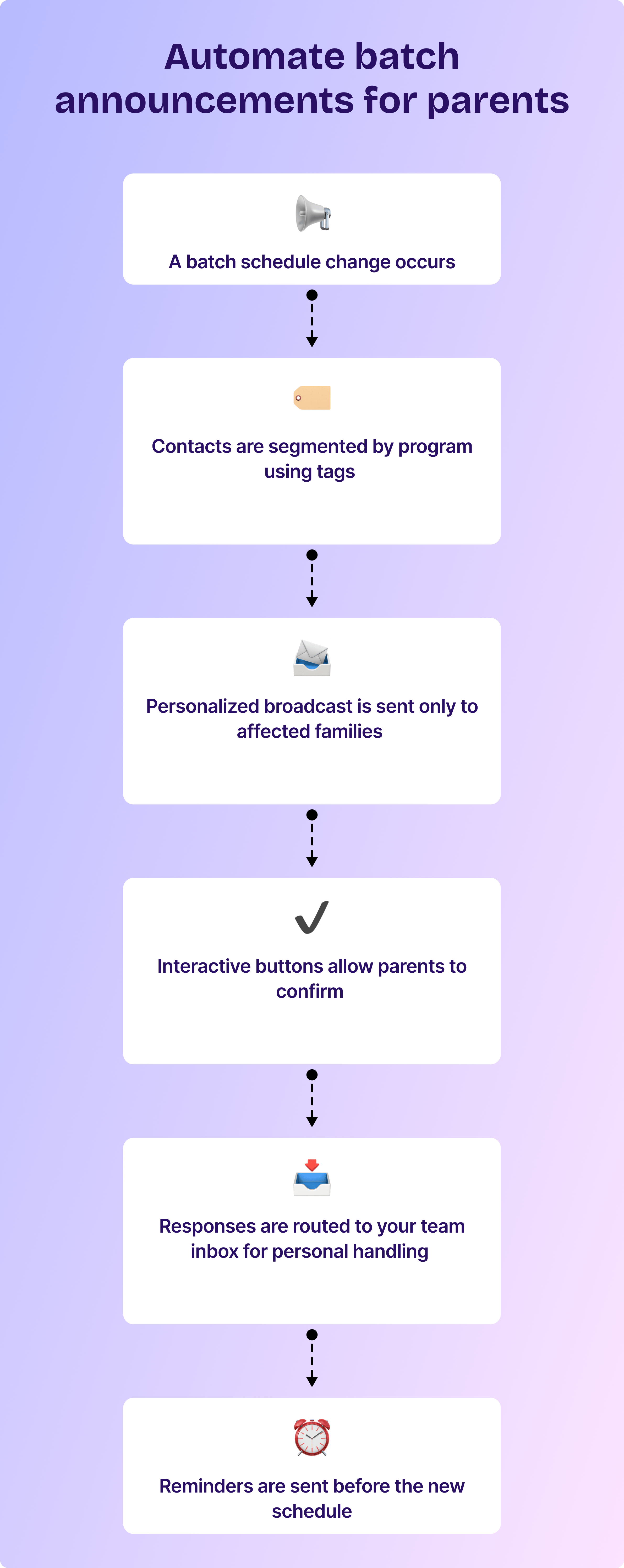
Steps to set up automating announcements for schedule changes to parents
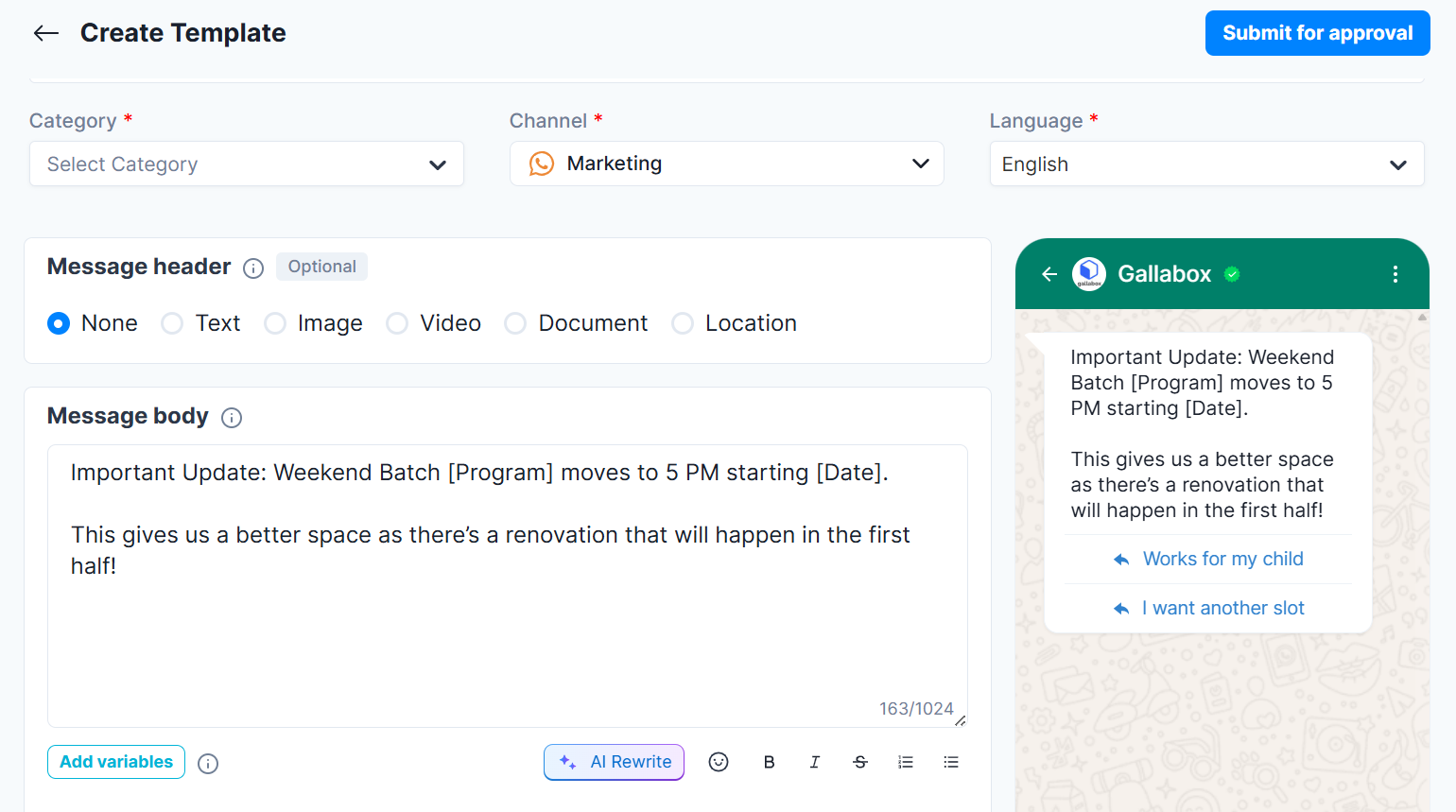
1. In the Gallabox dashboard, select Broadcast and compose your announcement:
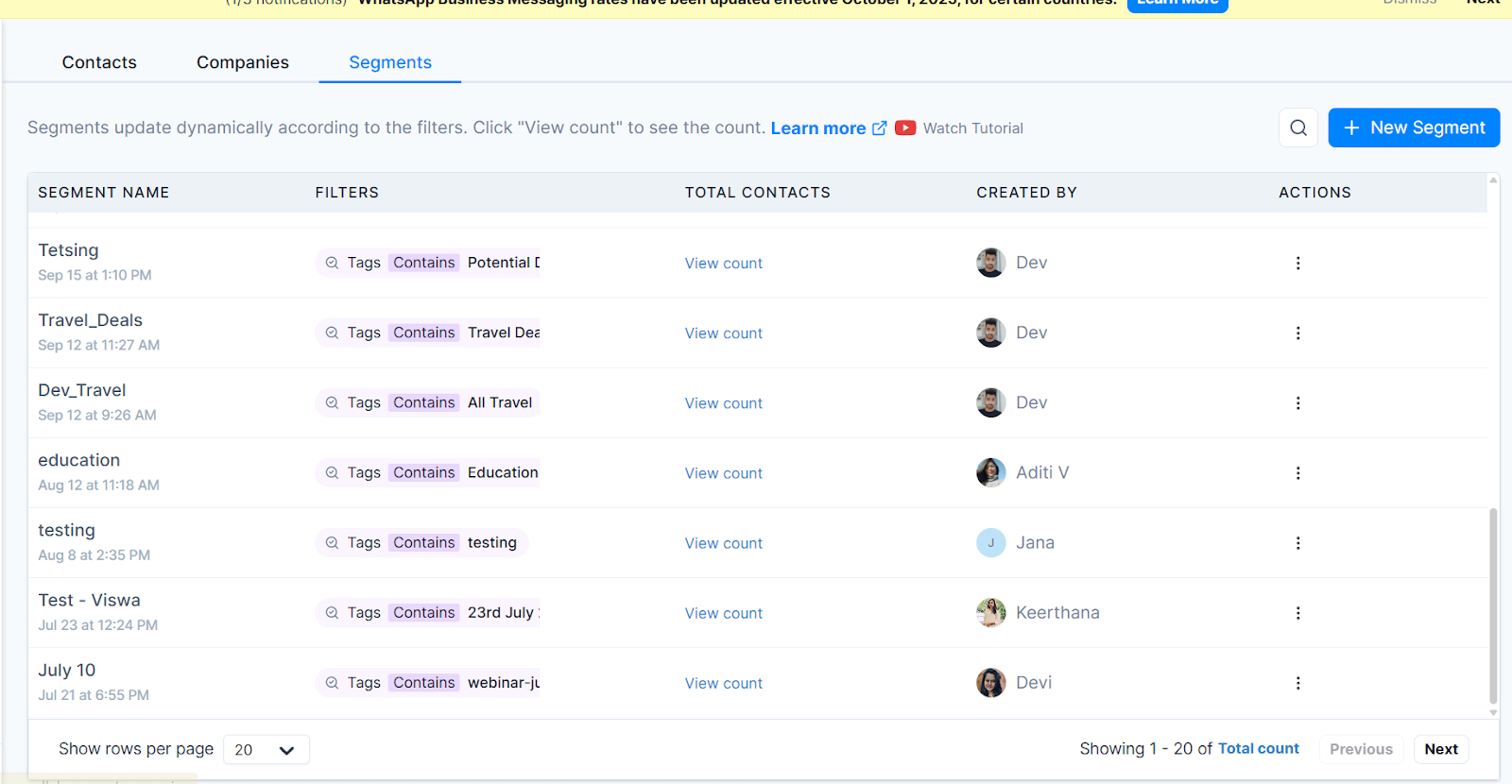
2. Go to Contacts on the left pane, and choose Segments to retrieve your batch lists.
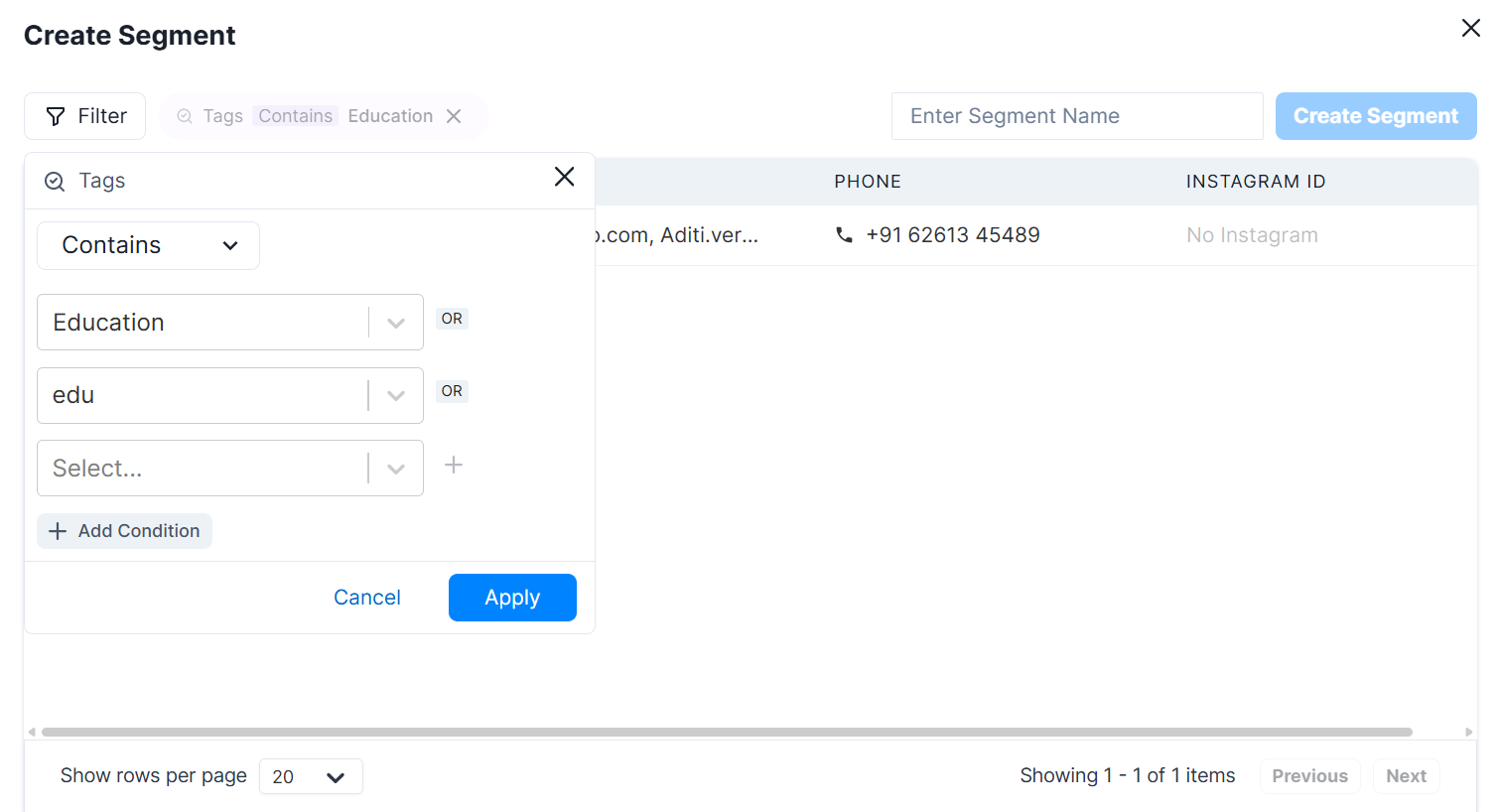
3. Filter your audience segment by entering the Tags for your batch. For instance, the announcement could be for a “Sports Fitness for Kids” program. Identify it by Tags.
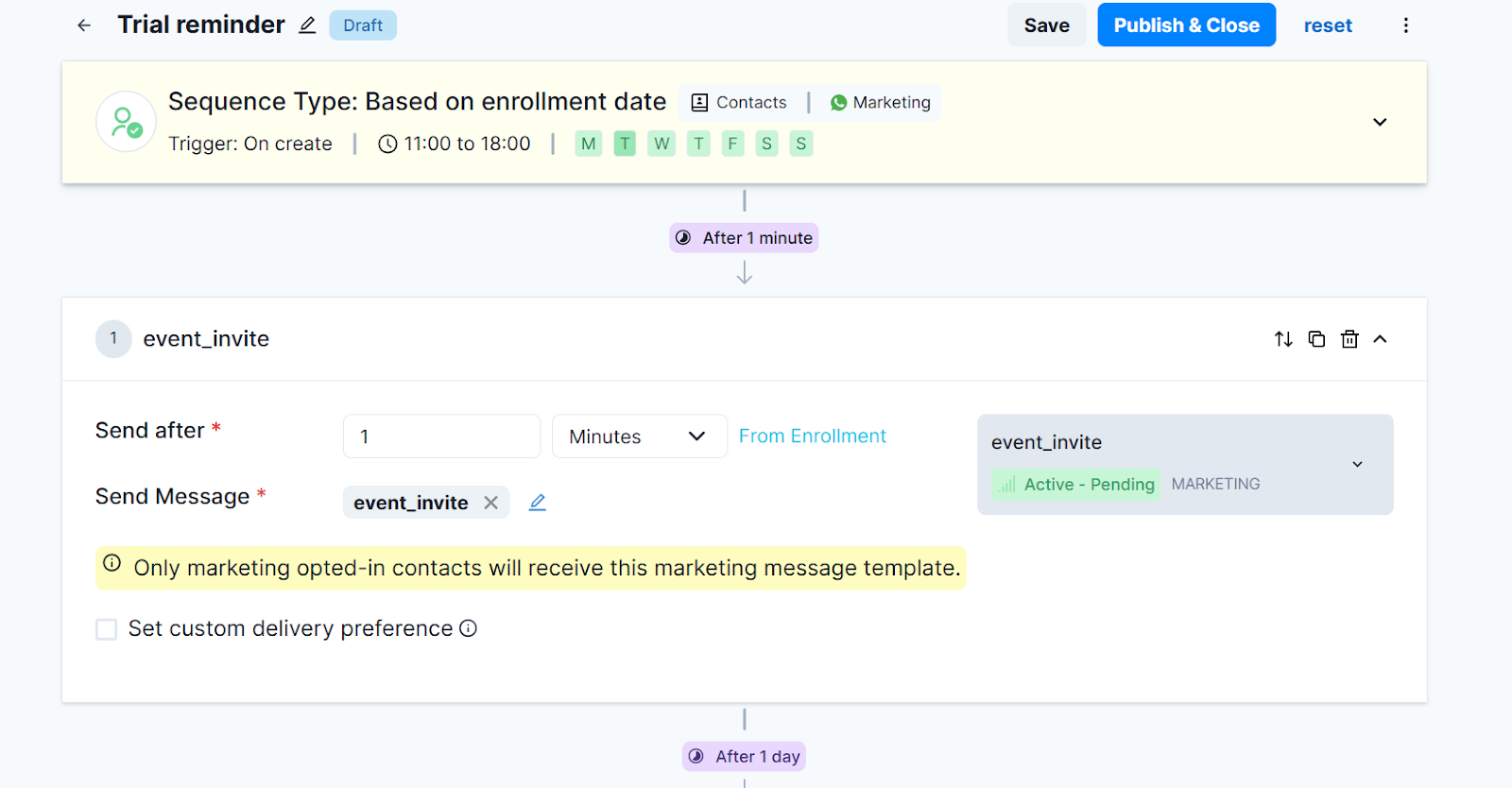
4. In Sequences, set up an automatic follow-up that triggers 24 hours after the broadcast to non-responders: "Hi [Parent Name], just confirming you got the schedule update for [Program] at 5 PM. Reply YES to confirm."
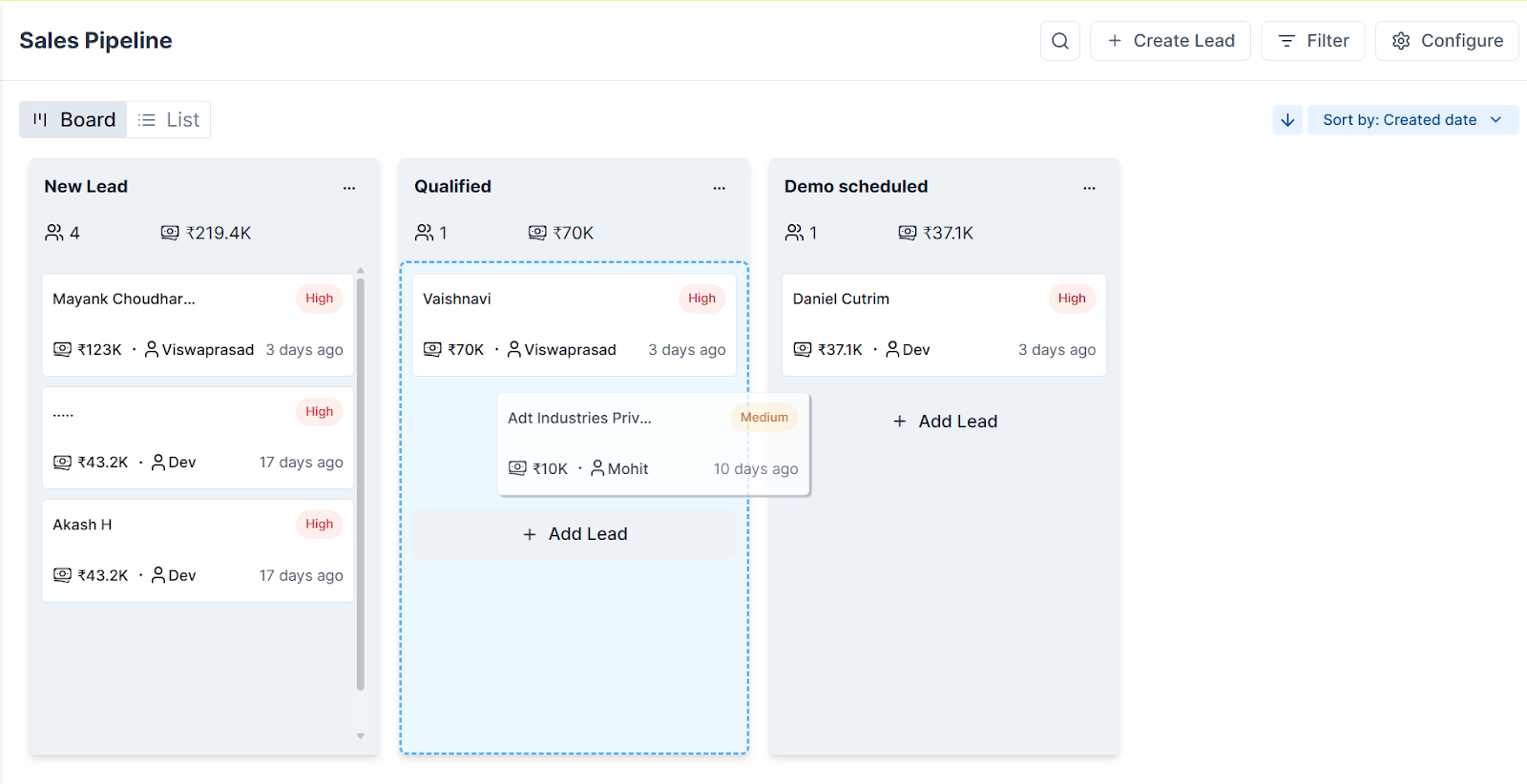
5. Use Pipeline Management to tag all contacts by response status: "Confirmed," "Pending," or "No Response." Your team can then prioritize personal calls to non-responders.
.svg)

.png)
Get your business on WhatsApp with Gallabox
Heading

When schedules change, this workflow instantly notifies all relevant families with personalized, segmented messages. It eliminates confusion, ensures 100% reach, and allows your team to track who's acknowledged the change.
Steps to set up automating announcements for schedule changes to parents
1. In the Gallabox dashboard, select Broadcast and compose your announcement:
2. Go to Contacts on the left pane, and choose Segments to retrieve your batch lists.
3. Filter your audience segment by entering the Tags for your batch. For instance, the announcement could be for a “Sports Fitness for Kids” program. Identify it by Tags.
4. In Sequences, set up an automatic follow-up that triggers 24 hours after the broadcast to non-responders: "Hi [Parent Name], just confirming you got the schedule update for [Program] at 5 PM. Reply YES to confirm."
5. Use Pipeline Management to tag all contacts by response status: "Confirmed," "Pending," or "No Response." Your team can then prioritize personal calls to non-responders.
Get your business on WhatsApp with Gallabox
Get your business on WhatsApp with Gallabox
Related articles
Take Gallabox for a 7-day ride
.svg)


%201.webp)


